
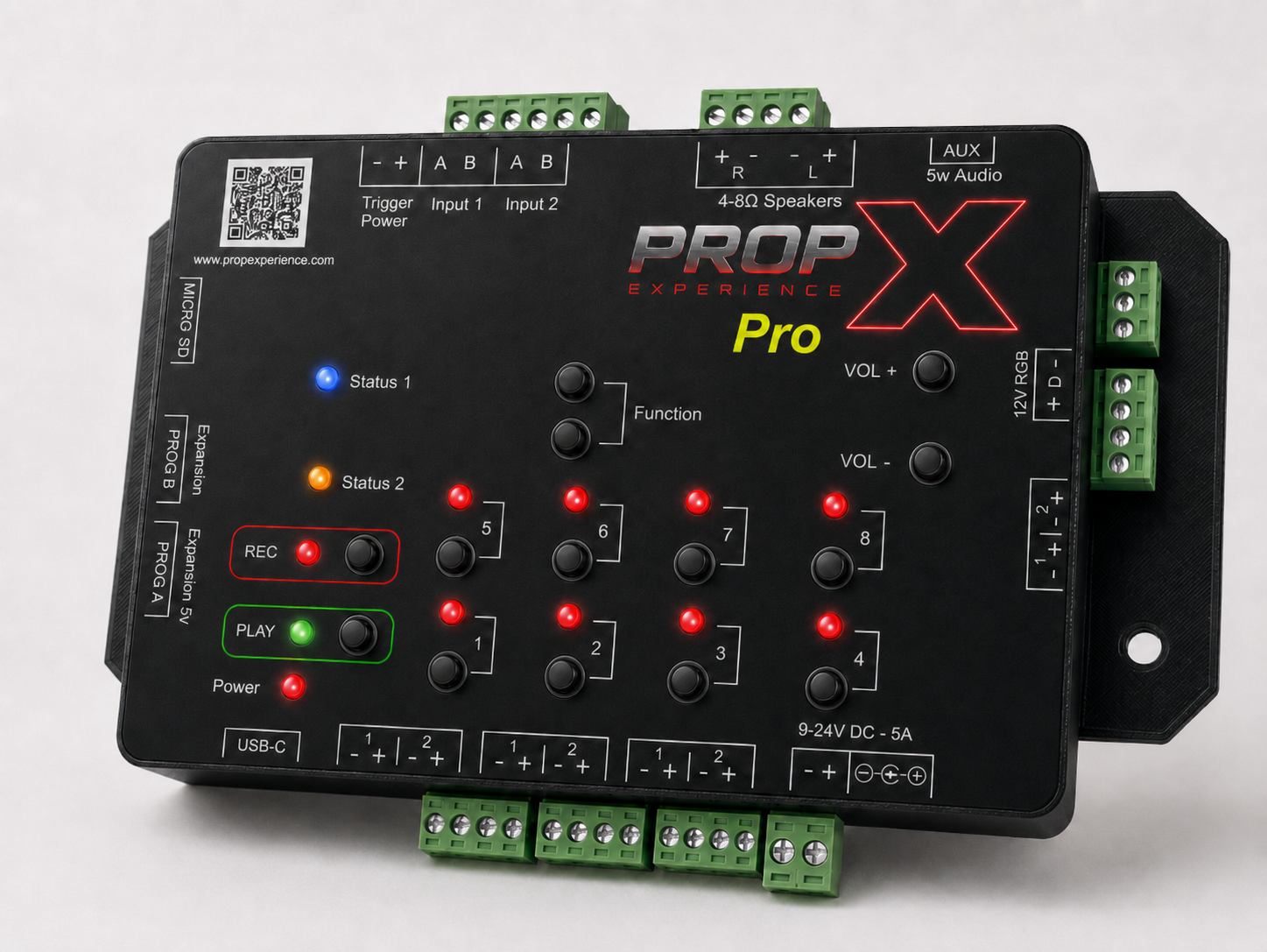
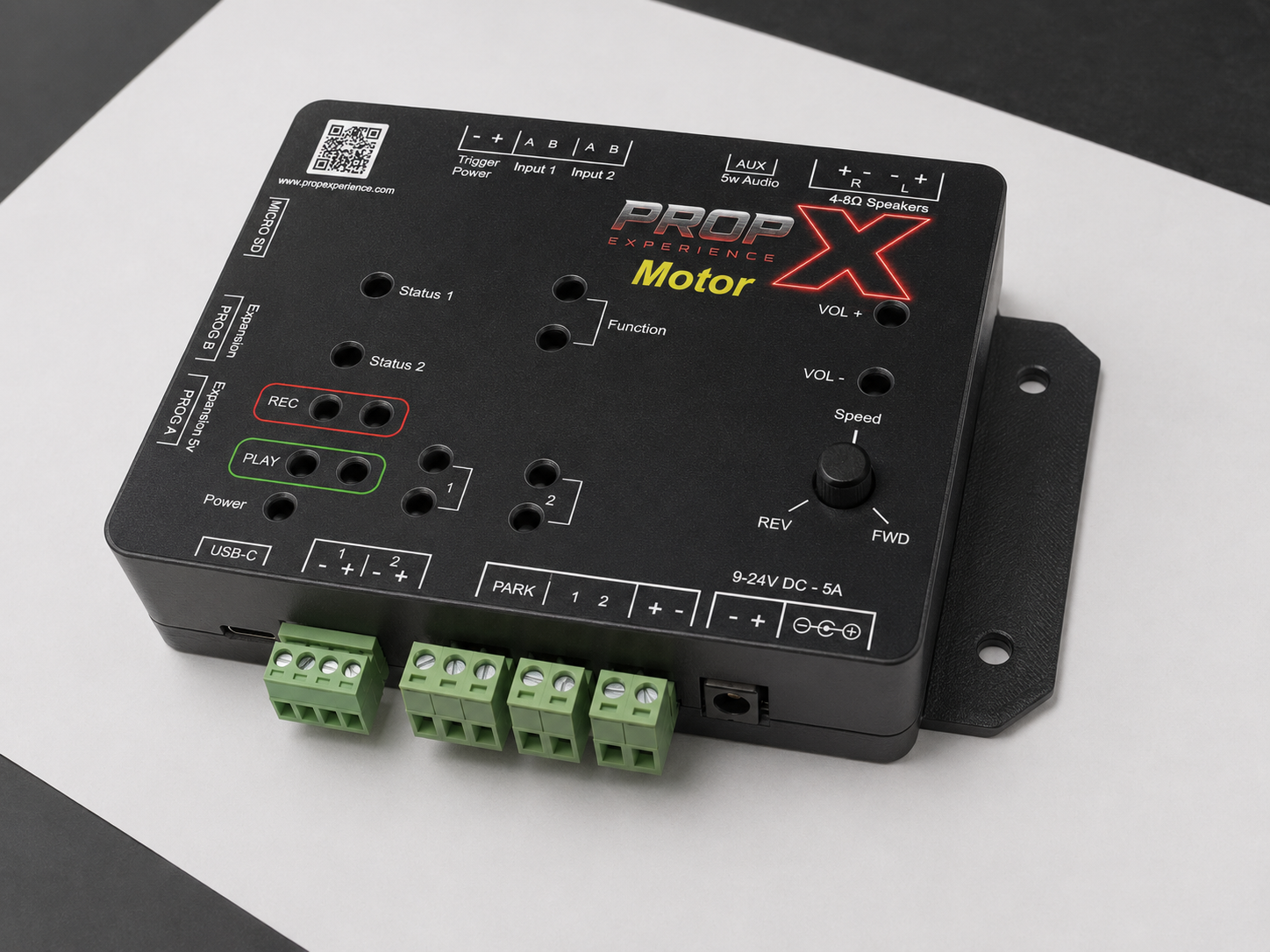
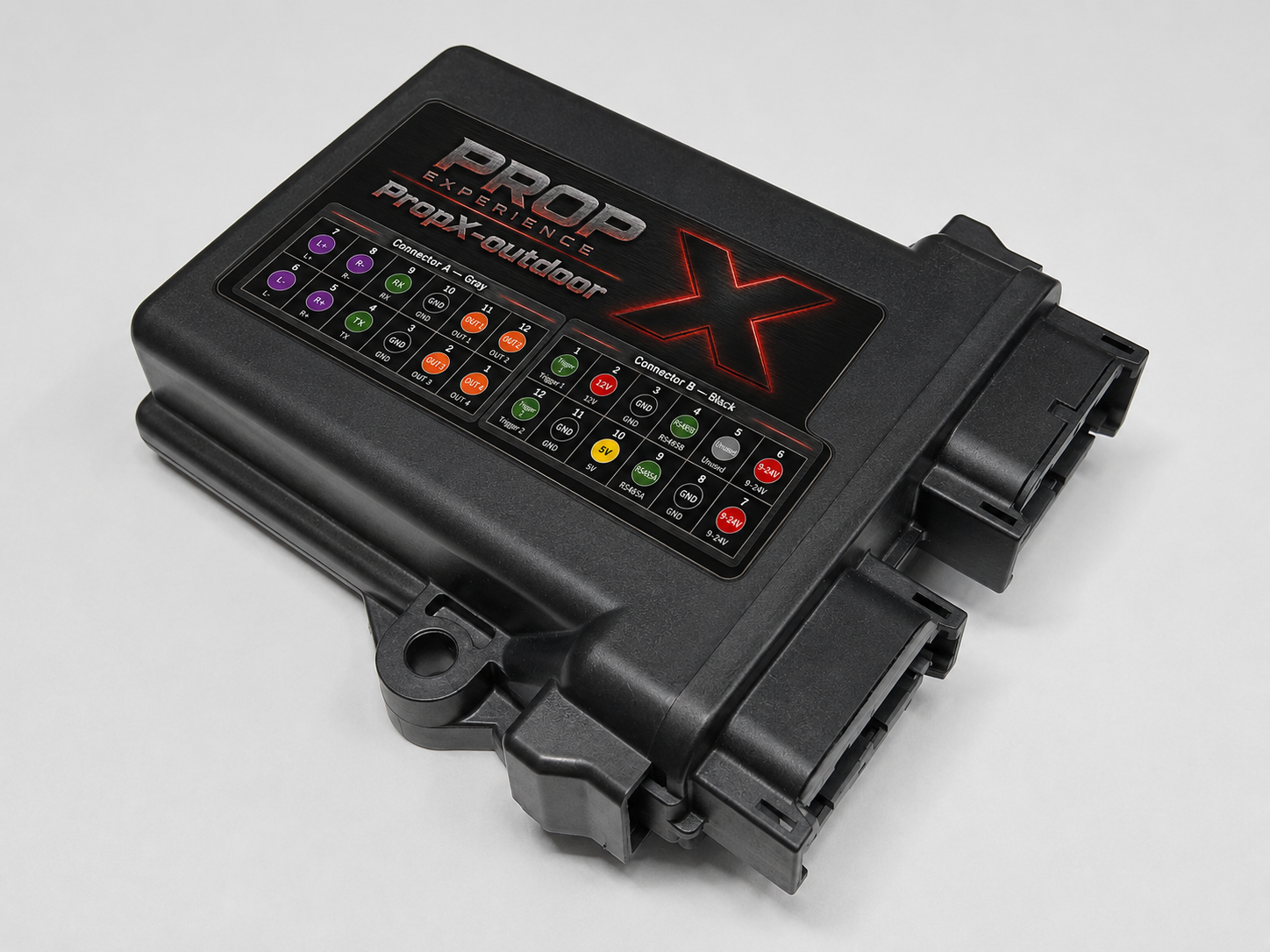
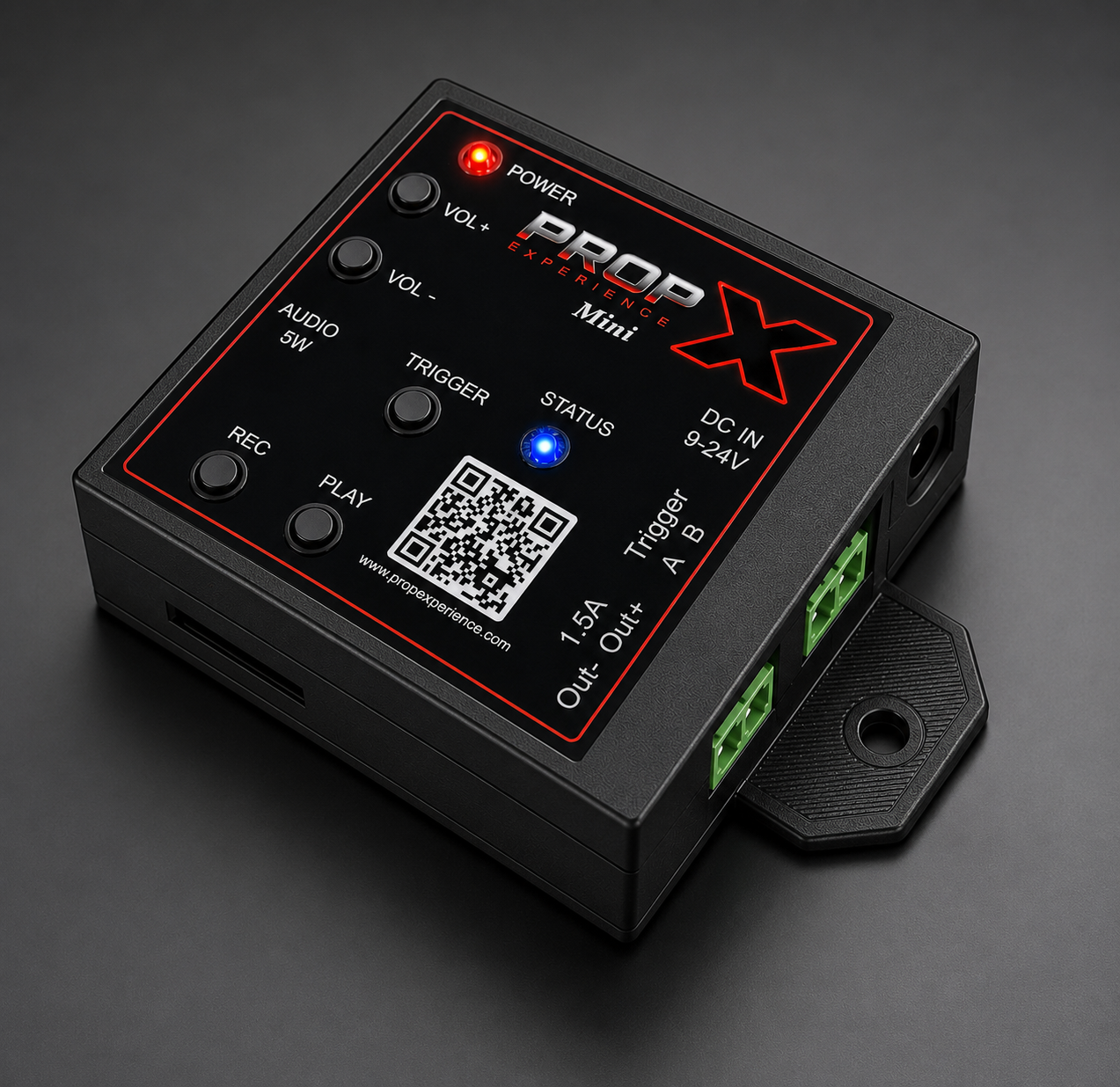
Applies to: PropX-Pro, PropX-Motor, PropX-Outdoor, PropX-Mini. (The PropX-Tinker doesn't pair with the app — see its console reference.)
Before you start, you’ll need
- Your controller, powered on (its status light solid blue — see your model's troubleshooting page if it isn't)
- A computer with Bluetooth and the PropX Control Center app installed
- Time: about 2 minutes
Step 1 — Add it in the app
Open PropX Control Center.
Your controller shows up in the device list, ready to adopt. The characters after the dash are your controller's serial number — the same one printed on its label:

You'll see: your controller's name, an ADOPT badge, and an Add device button.
Model Name looks like PropX-Pro PropX-+ serial numberPropX-Motor PropX-Motor-+ serial numberPropX-Outdoor PropX-Outdoor-+ serial numberPropX-Mini PropX-Mini-+ serial numberClick Add device.
You'll see: a pairing dialog open.
Step 2 — Pair from the dialog
Follow the dialog: hold the Record and Output 1 buttons together for about 5 seconds, then release.
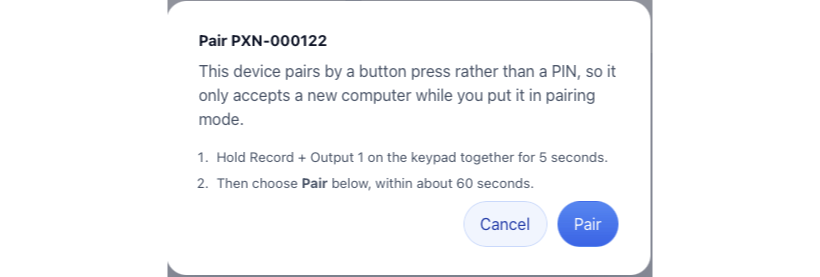
You'll see: the status light flashes purple — the controller is discoverable and ready to pair.
Click Pair, within about 60 seconds.
You'll see: it connect — no PIN required. Name it, name its outputs, and test them from the app.
Bluetooth connection limit
A controller can stay paired with only two computers over Bluetooth at a time. To add it on a third, remove it from one of the other two first, then repeat the steps above on the new computer. Need more than two connections at once? WiFi doesn't have that limit — see WiFi setup.
Pairing not working?
Make sure the status light is flashing purple before you click Pair — if it isn't, hold the Record and Output 1 buttons a little longer. Your model's troubleshooting page covers scan and pairing problems: Pro · Motor · Outdoor · Mini