
PropX Control Center
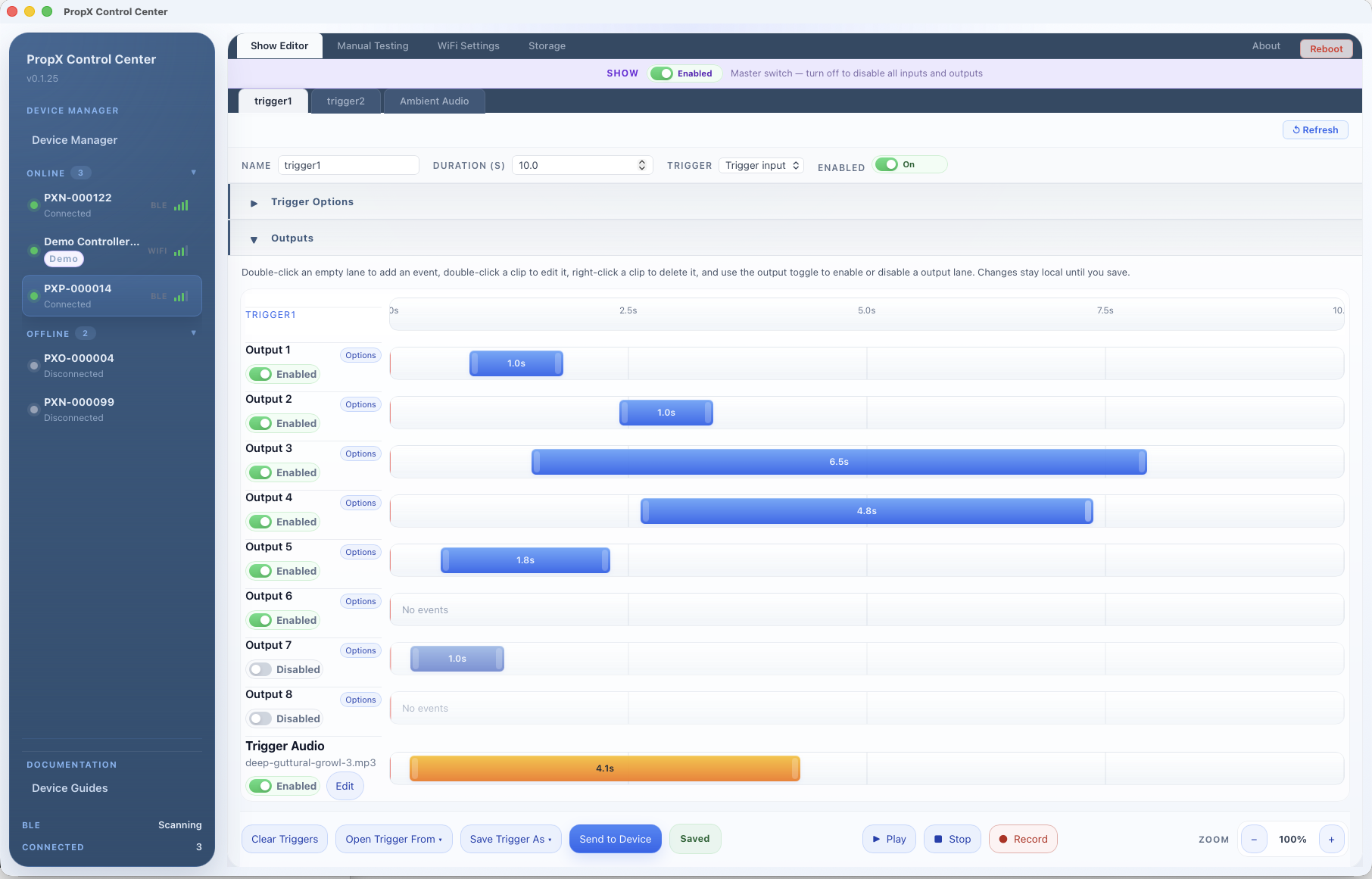
The desktop app for your PropX controllers. Pair over Bluetooth to build multi-step shows, manage sound, and set up WiFi. Cloud remote control is coming soon.
Version 0.1.25· macOS (Apple Silicon) & Windows
What you need
- macOS: Apple Silicon (M1 or later), macOS 11 Big Sur or later
- Windows: 64-bit Windows 10 or 11
- Bluetooth turned on
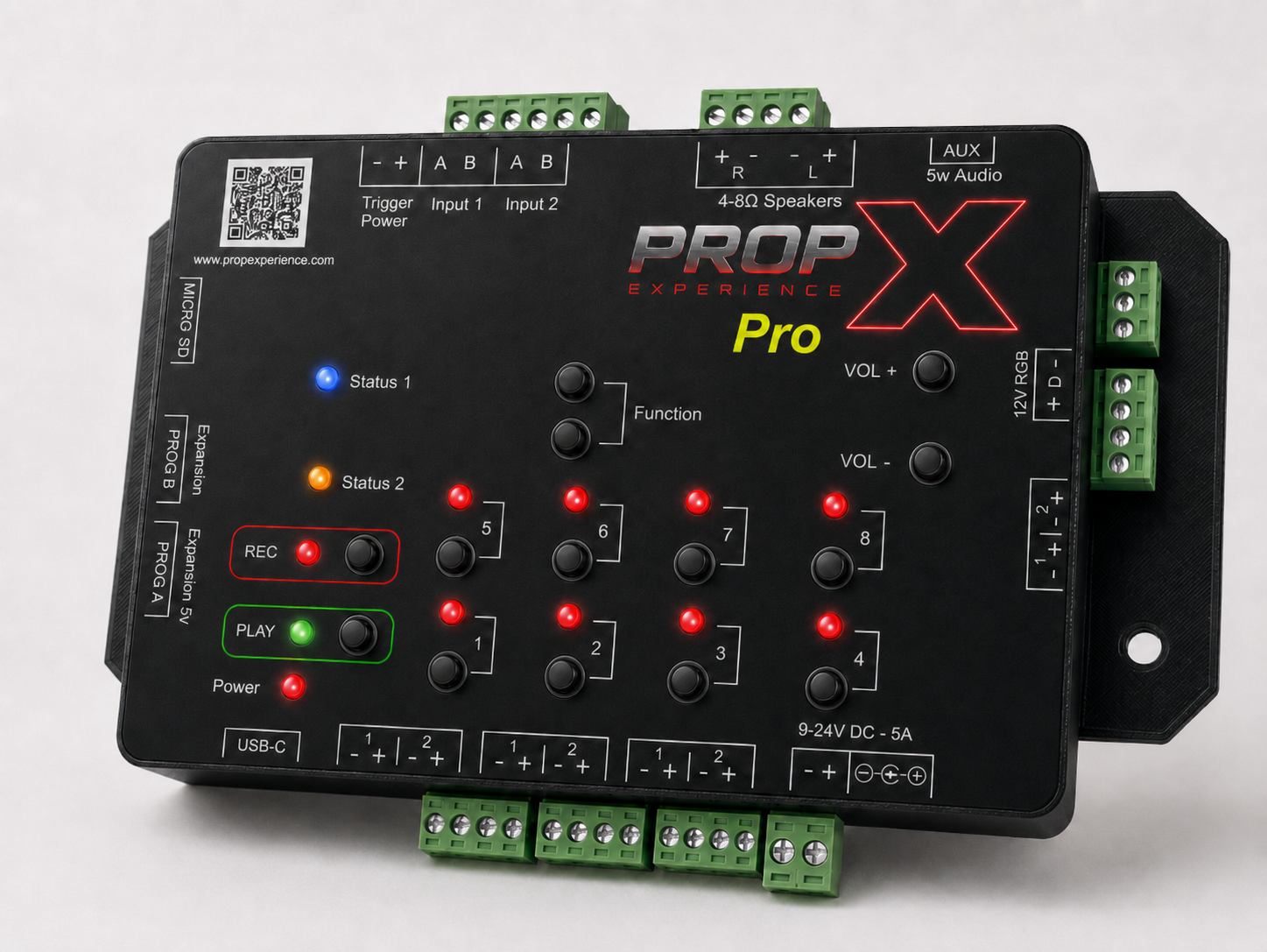
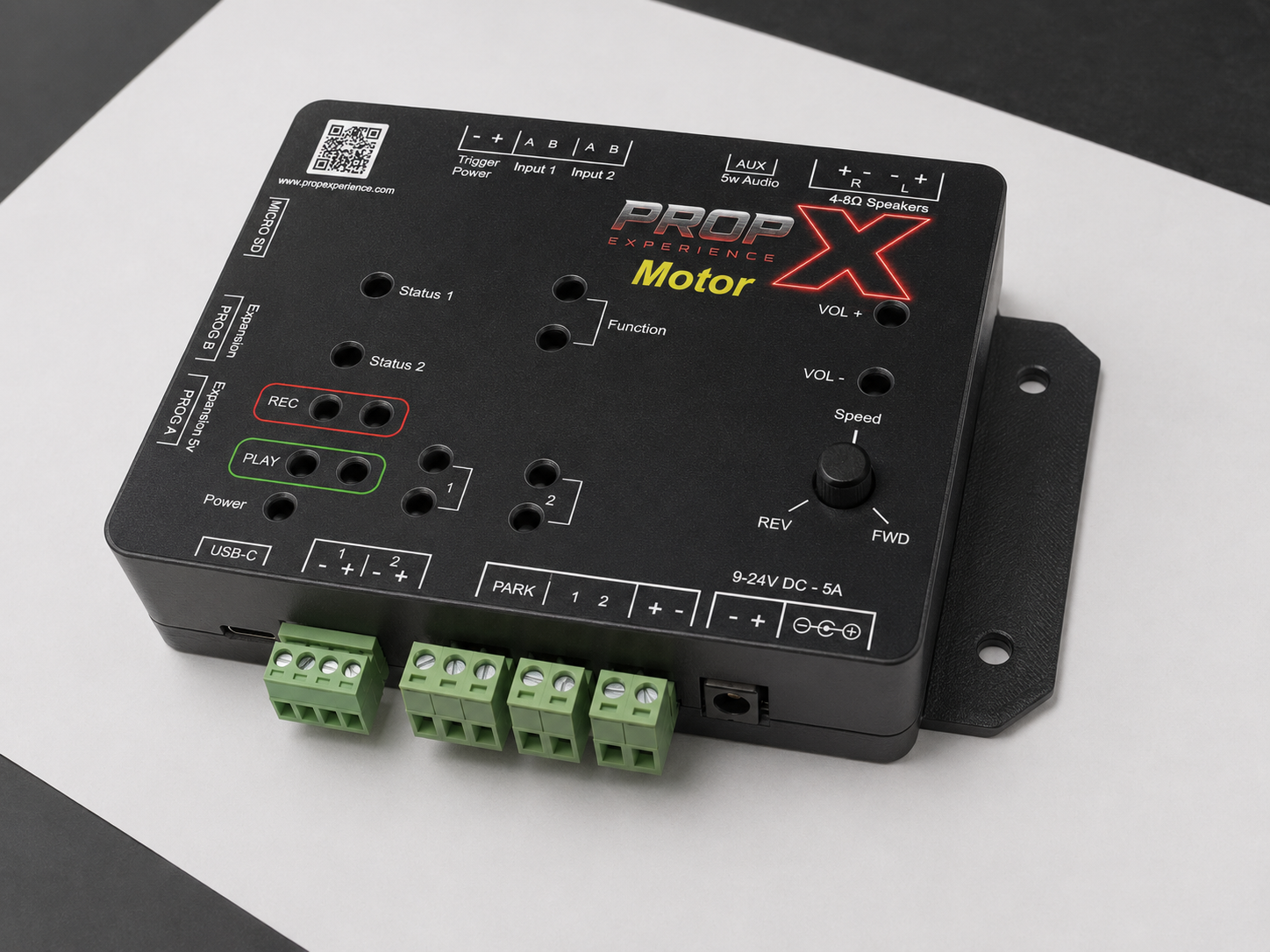
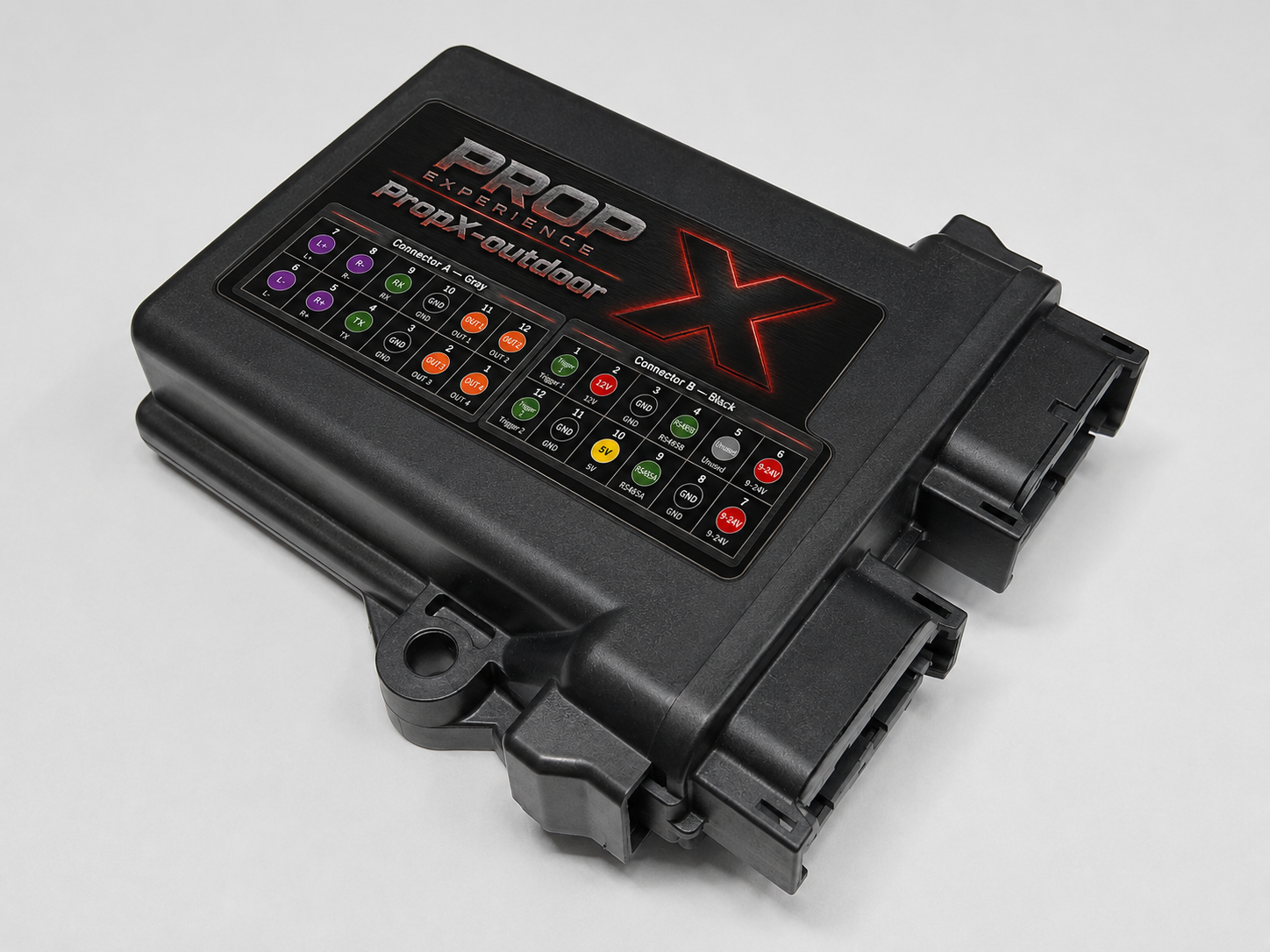
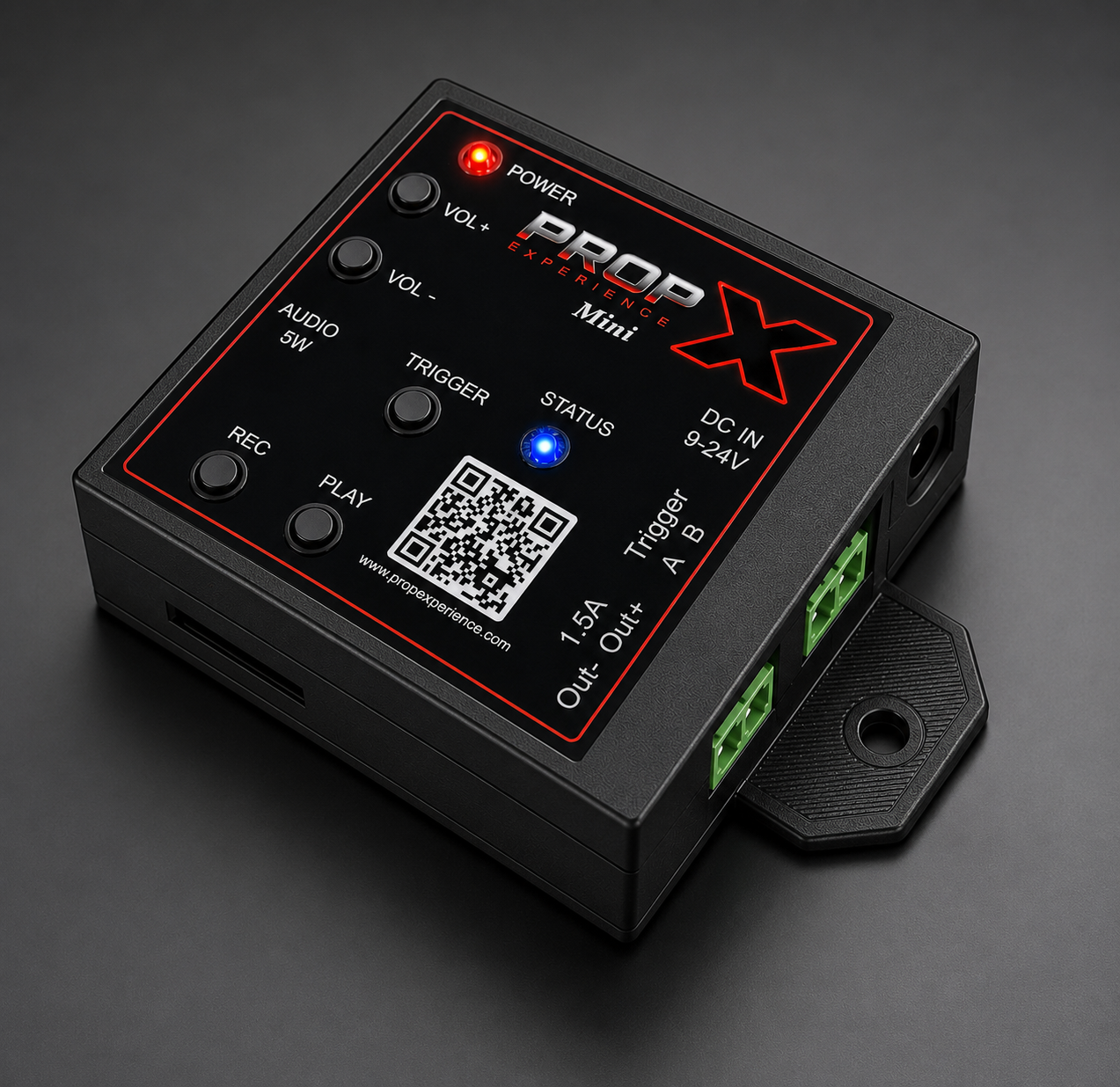
- A PropX Pro, Motor, Outdoor, or Mini
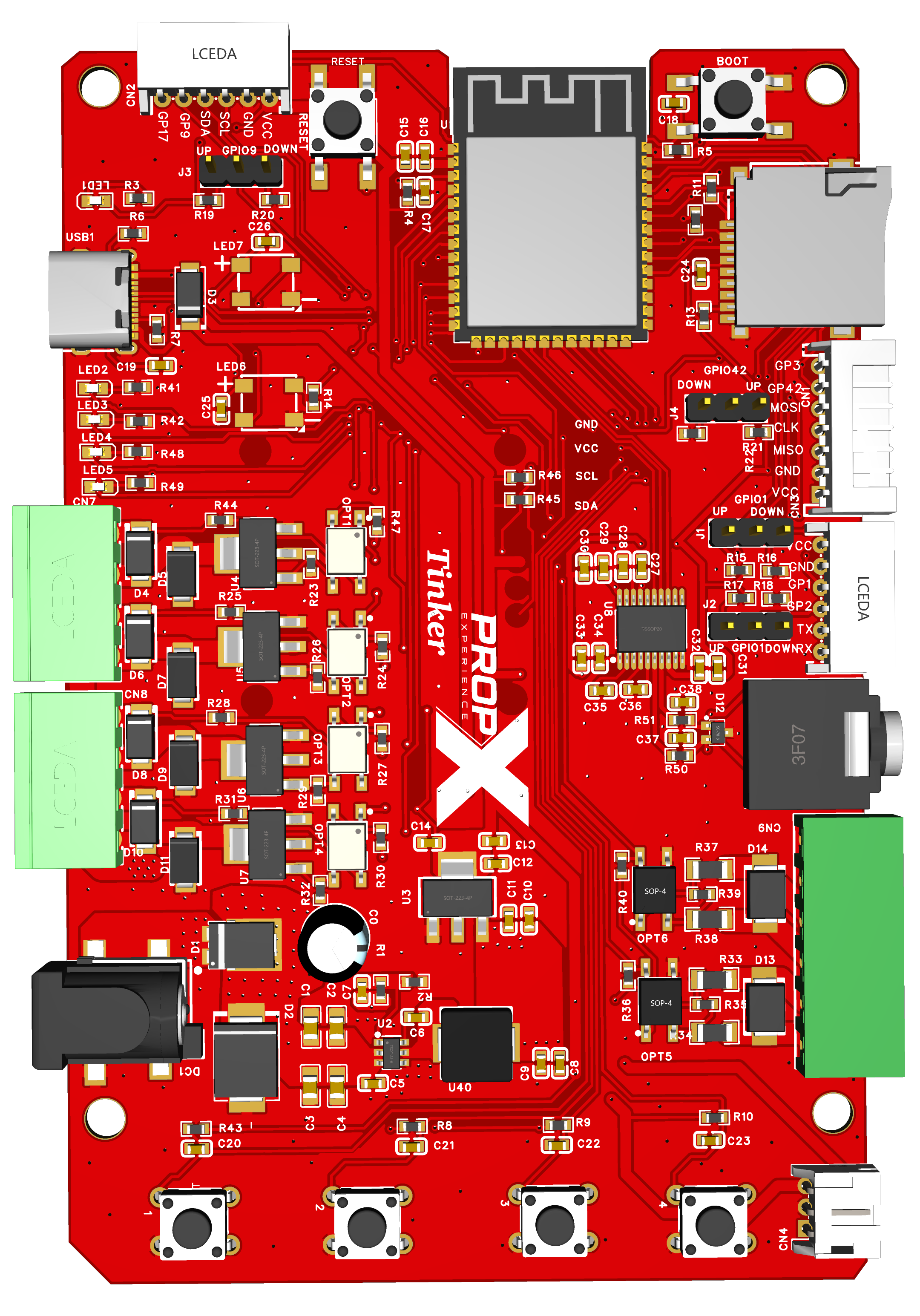
The macOS build is Apple Silicon only — it won’t run on an Intel Mac. The PropX-Tinker doesn’t use this app — it’s driven from a USB-C serial console instead, covered in its console reference.
What you can do
Build multi-step showsLay out relays, sound, and lighting on a timeline, then save the show straight to your controller.
Test your hardwareFire relays, play sounds, drive DMX and LED strips, and exercise motors before a show goes live.
Set up WiFiPut a controller on your network. Cloud remote control — running it when you're not standing next to it — is coming soon.
Keep firmware currentCheck for and install controller firmware updates without pulling the prop apart.
Install and first run
- 1Run the installerOn macOS, open the .dmg and drag PropX Control Center into Applications. On Windows, run the setup .exe and follow the installer.
- 2Launch itOpen PropX Control Center from Applications (macOS) or the Start menu (Windows). The macOS build is signed and notarized by Apple, so it opens normally — no security workaround needed.
- 3Allow BluetoothThe first time it runs, your system asks for Bluetooth permission. Allow it — this is how the app talks to your controllers.
- 4Pair your first controllerPower on a controller, put it in pairing mode (hold Record + Output 1 for 5 seconds until the light flashes purple), click Scan, and follow the pairing guide below.
After that the app keeps itself up to date — it checks for a new version shortly after it starts and offers to install it. You can also check any time from PropX Control Center › Check for Updates in the menu bar.
Guides
Pair your controller with the appAdd a PropX Pro, Motor, Outdoor, or Mini to the PropX Control Center app over Bluetooth — add it from the device list, then confirm pairing mode when the dialog asks. No PIN.Connect your controller to WiFiConnect a PropX Pro, Motor, Outdoor, or Mini to your WiFi network from the app — plus the 5-minute setup-network fallback when Bluetooth can't reach it.Cloud remote control (coming soon)Cloud remote monitoring and triggering for PropX Pro, Motor, Outdoor, and Mini is coming soon. Today, control your controller over Bluetooth with the PropX Control Center app.Update your controller's firmwareUpdate a PropX Pro, Motor, Outdoor, or Mini — from the app over WiFi, or from a MicroSD card — and what the green and red lights mean during an update.
Still stuck?
Email us — we respond within 24 hours. Include your serial number, what the lights show, and what you were doing.
support@propexperience.com