
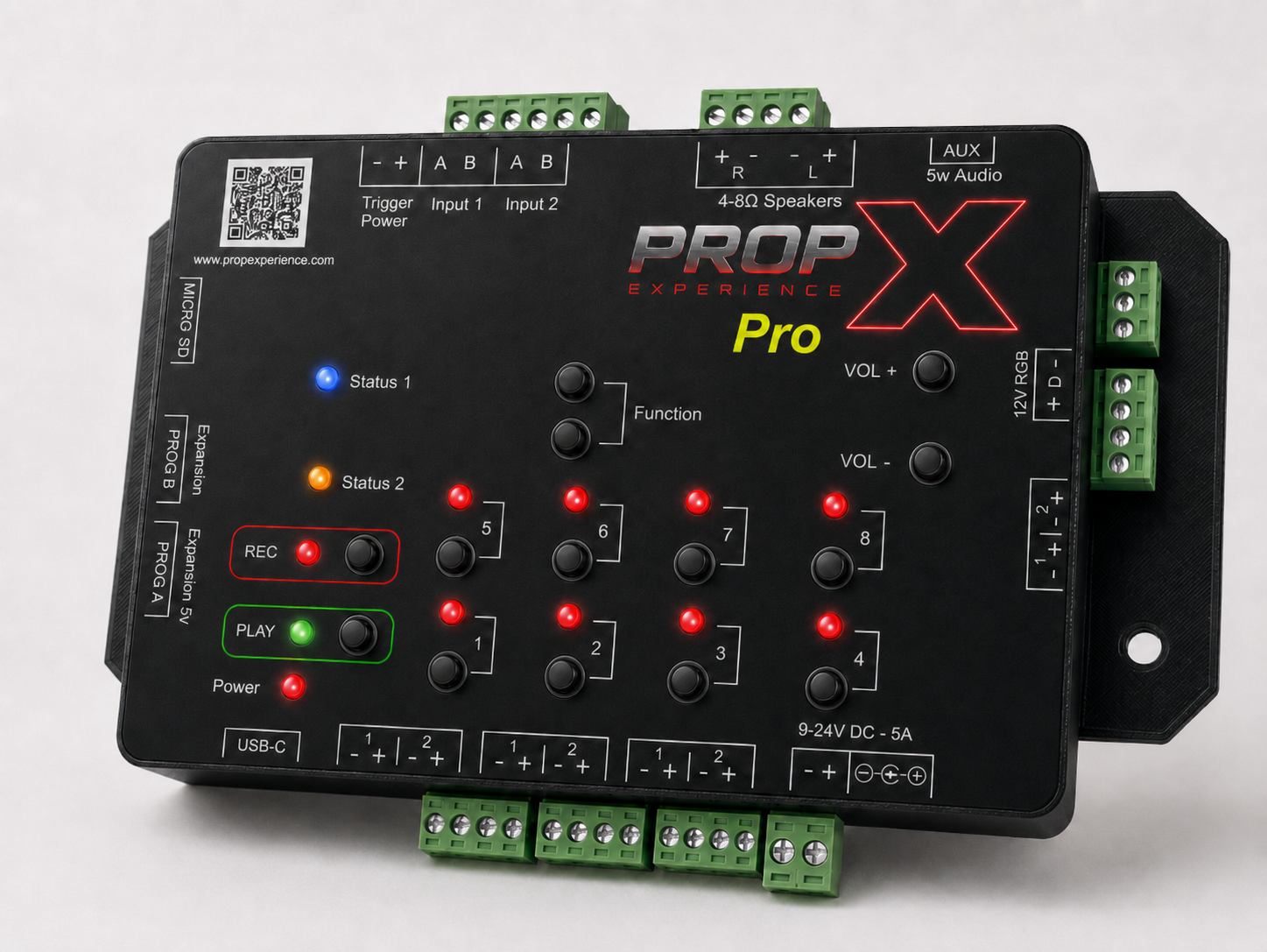
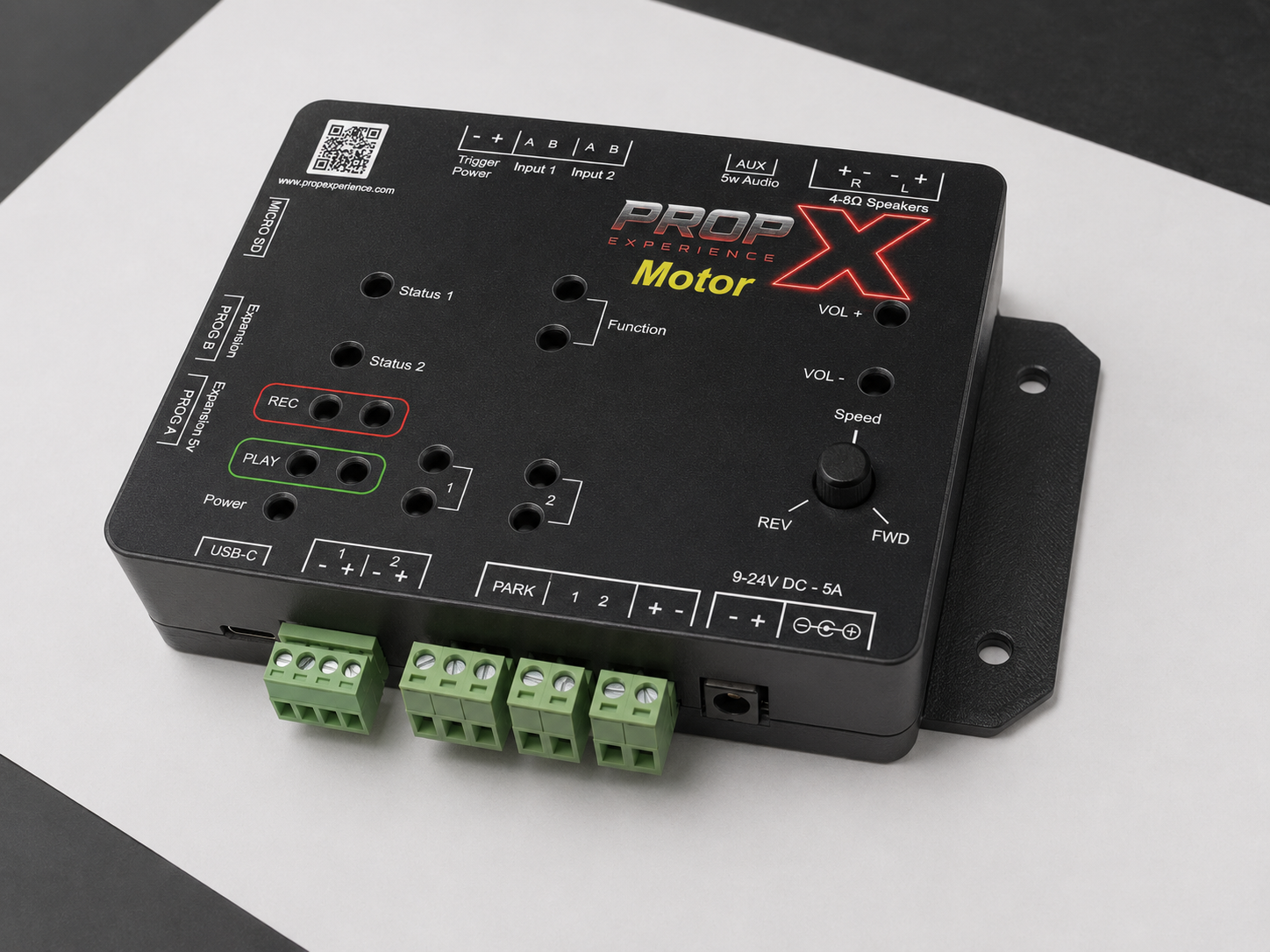
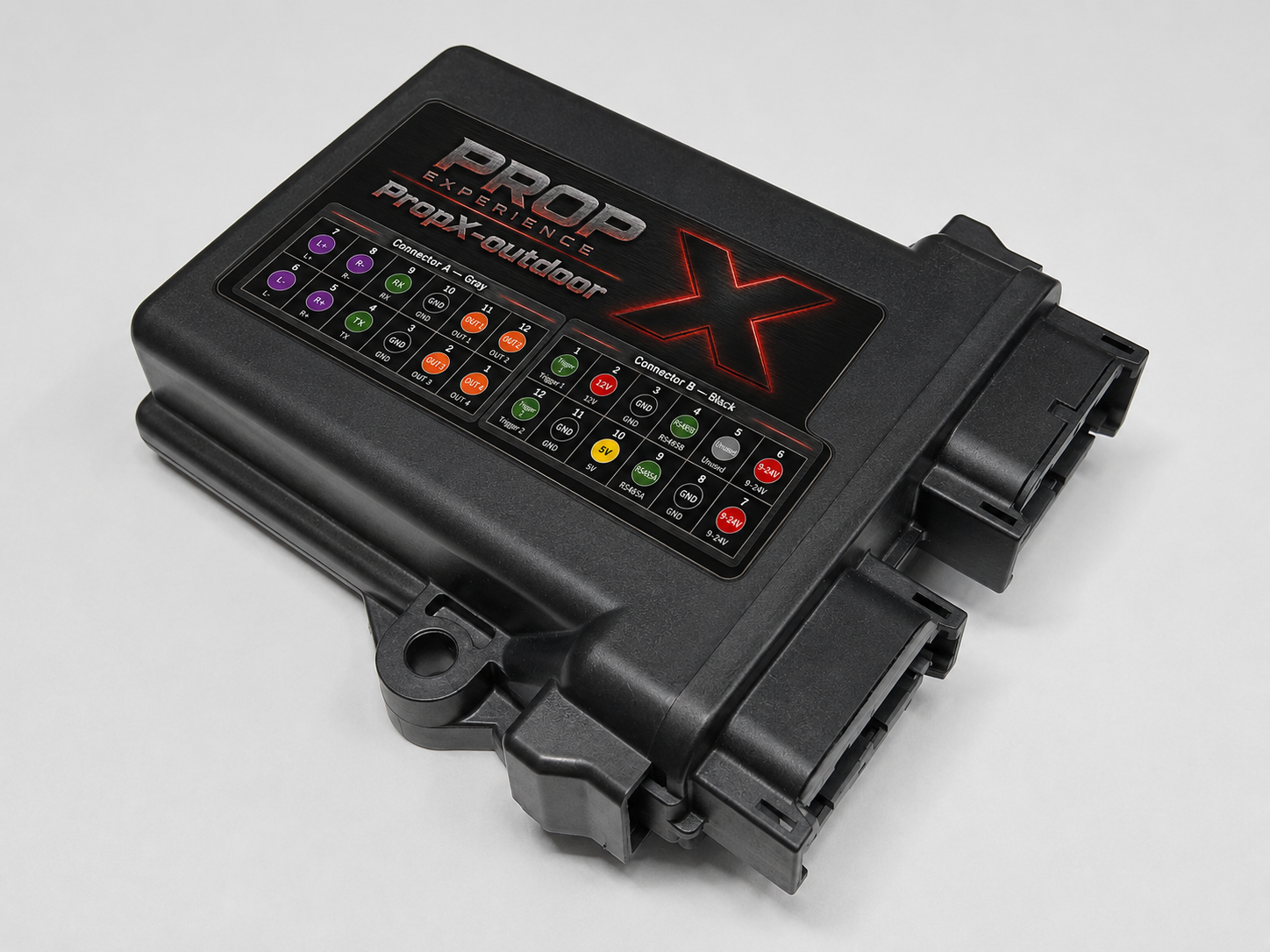
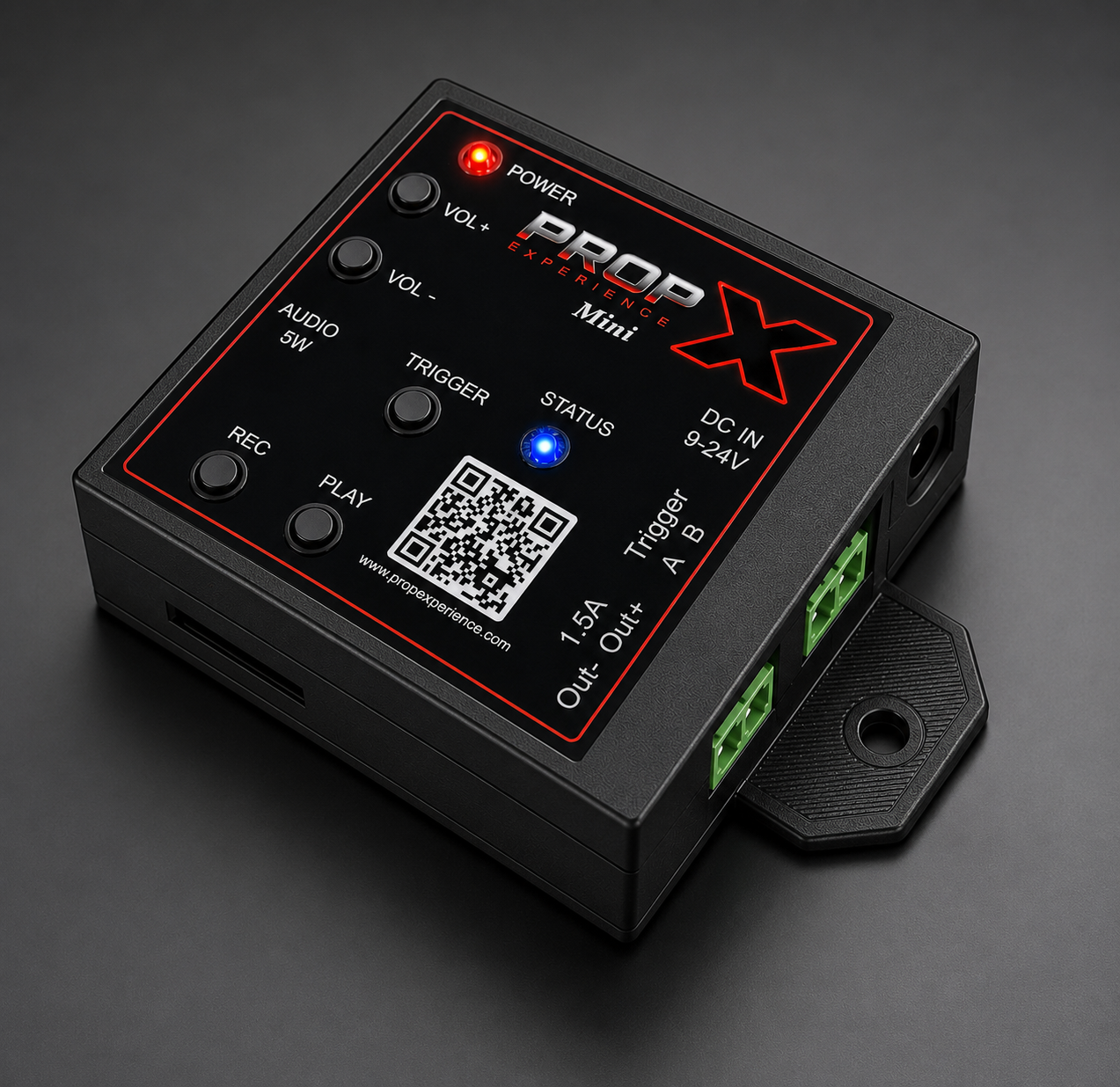
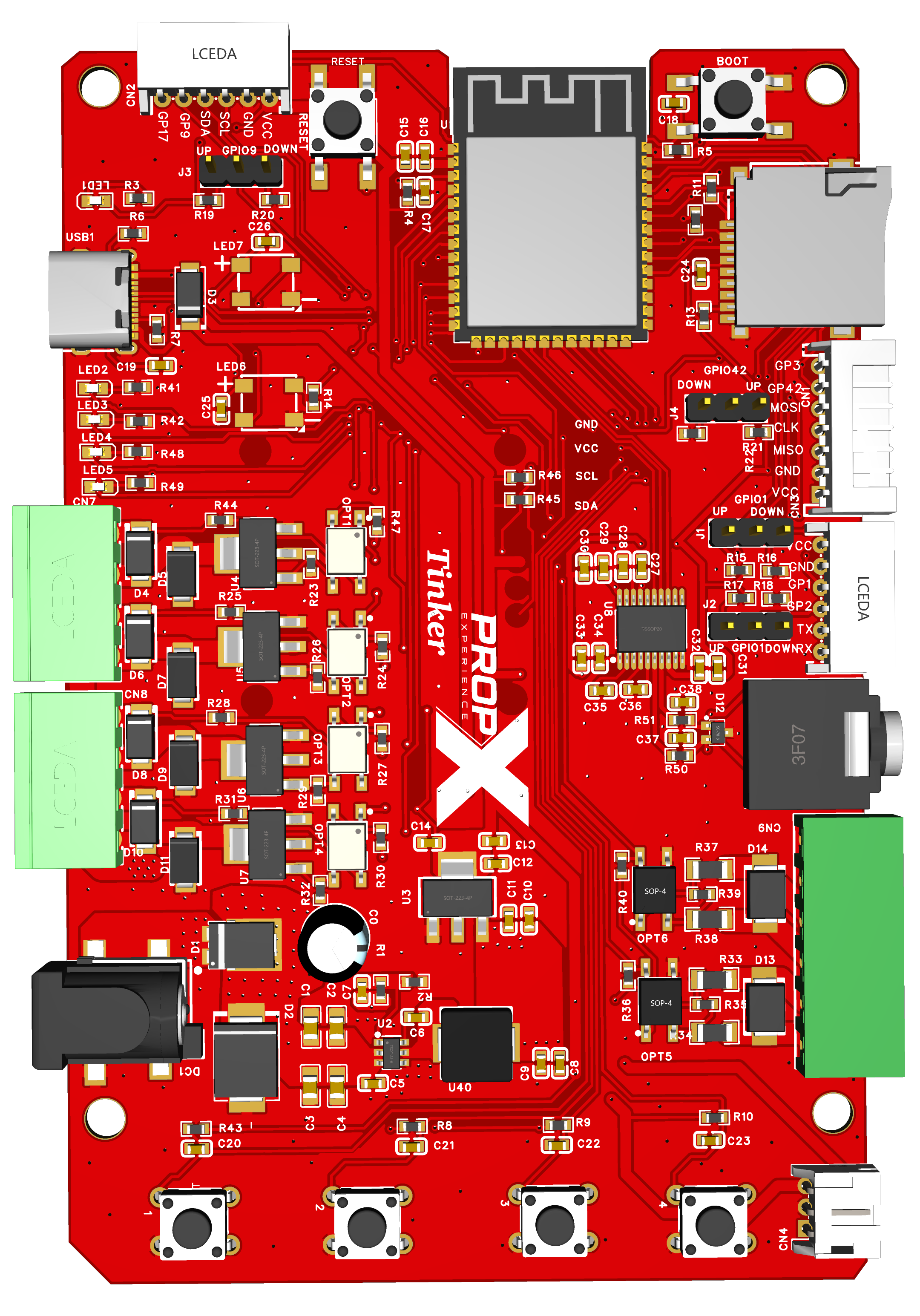
Applies to: PropX-Pro, PropX-Motor, PropX-Outdoor, PropX-Mini. Firmware is the controller's built-in software. Updates come two ways; both check the file is intact and made for your exact model before installing.
Before you start, you’ll need
- For the app method: your controller connected to WiFi
- For the card method: a MicroSD card and the update file for your model (Mini card-slot presence is being confirmed — #104; Mini owners use the app method for now)
- Time: about 5 minutes
⚠️ Warning: Never unplug the controller while updating. The device should reboot after update is complete.
From the app (over WiFi)
Open PropX Control Center.
If an update is available, a banner appears at the top of the Show Editor.
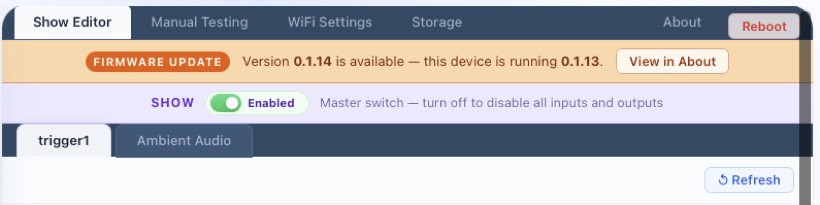
You'll see: the available version and your device's current version, with a View in About button.
Click View in About
(or open the About tab yourself).
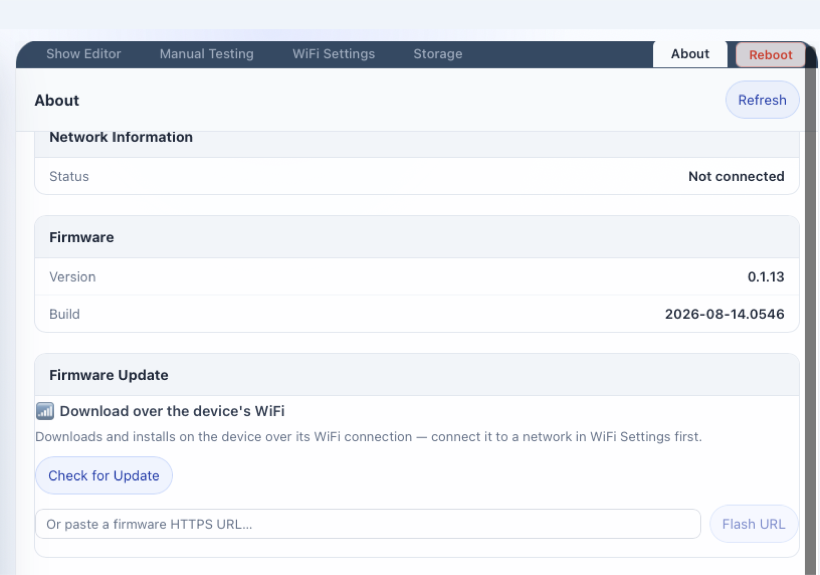
You'll see: your controller's current firmware version and build date, and a Check for Update button under Firmware Update.
Click Check for Update.
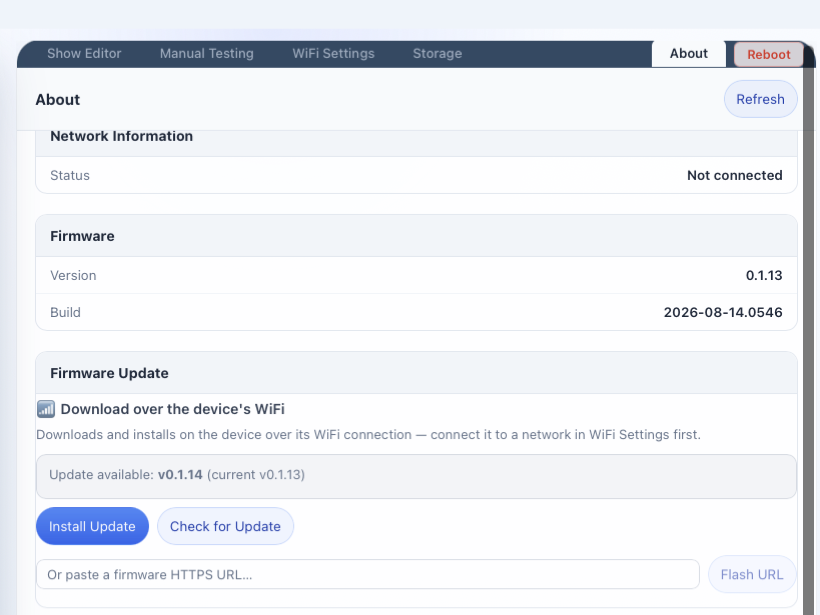
You'll see: Update available: vX.X.X (current vY.Y.Y) and an Install Update button.
Click Install Update.
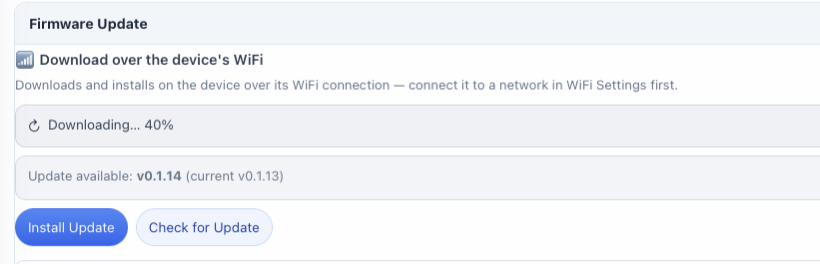
You'll see: a download percentage tick up — the controller pulls the file over its own WiFi connection.
Wait for it to finish.
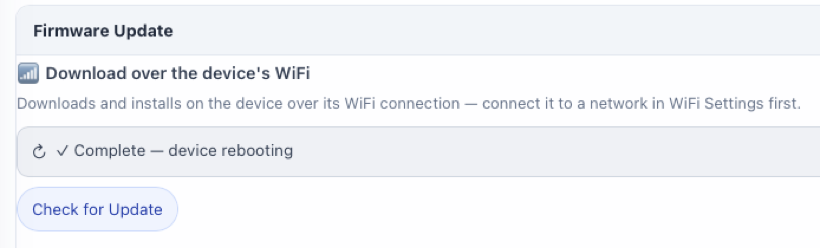
You'll see: Complete — device rebooting. The controller restarts on its own and reconnects on the new version.
From a MicroSD card
Copy the update file (named
propx-…bin) onto the card.Insert the card and power the controller on.
You'll see: solid green = installing (it restarts when done); blinking red = the file on the card is for a different model.
Done.
The controller renames the file after installing so it won't install twice.
Why did my update fail?
| What you saw | Why | What to do |
|---|---|---|
| A "no WiFi" message in the app | App updates download over WiFi | Connect WiFi first |
| A file-check error in the app | The download didn't verify — rejected to protect the controller | Try again |
| Blinking red at power-on | Wrong-model file on the card | Download the file for your exact model |
| Nothing happened with a card in | No usable propx-…bin on the card | Check the file name and location |
The PropX-Tinker updates differently (USB flash from its open-source repo) — see its FAQ.